1.1. Download and unzip the file SongChecker.zip
After purchasing the program, download and unzip the file SongChecker.zip into your PC.
In the picture below, the SongChecker.zip is unzipped into a folder D:\Song Checker\

Double click on the file "setup" to start installing. Follow the on-screen instruction to complete the installation.
1.2. Install and activate the Song Checker
Start the CAVS SongChecker program.
For the first time starting, the following pop-up window will appear.
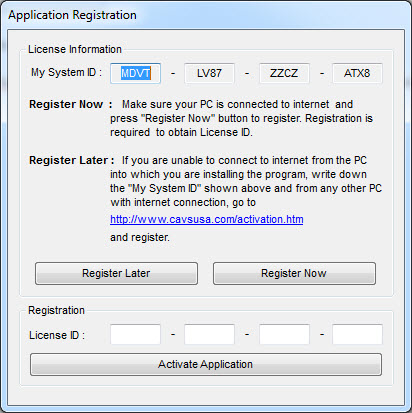
In this Application Registration window, you are given a System ID at the top.
Click on the button "Register Now" below the middle and follow the on-screen instruction to input your email address and the System ID.
Upon successful registration, you will be given a License ID.
Input the License ID at the bottom of the Application Registration window.
Press the button "Activate Application" at the bottom to complete the activation.
Upon the successful activation, the CAVS SongChecker program will open with the following window:

- Log window- Display results of file operations such as loading, checking, moving, etc.
- File window - Display the files from the selected folder(s).
- Check All - Select all files in the File window.
- Folder - Select folder(s).
-
File -
- Exit - Close program.
-
Help -
- User Manual
- Online Upgrade
- About SongChecker
- SubFolder - Check to include all files in the subfolder(s).
- Folder display - Display the selected folder path.
- Start Check - Start checking
- Playlist - Select a playlist
- Clear - Clear Log and File windows
- Save - Save the Log.
- View Error - View the log.
- Move File - Move selected files in File window.
2.1. Checking the song files in a folder
- Press "4. Folder" and navigate to select a folder. All files inside the folder will load into the "2. File window"".
- Checkmark each file individually or use "3. Check All" to select all files.
-
Check "7. SubFolder" if you wish to include all files of the subfolders relative to the selected folder.
To select multiple folders, first select a main folder and then checkmark "7.SubFolder". -
Press "9.Start Check" to start checking the files.
The result for each file will appear in the "1. Log window".
The checking speed will depend mainly on your PC hardware configuration with longer times spent on the video files such as MP4, AVI and MPG. - Press "13. View Error" to see the the checking results in a separate window".
- Press "12. Save" to save the checking results in a separate file.
-
Press "14. Move File" to move the checked files from their original folder(s) to a new folder.
When a file is checked and found OK, the checkmark is automatically removed. Then pressing "14. Move File" will move only the files found in errors.
Below, a set of CDG and MP3 files is checked. The File window shows for each file its Filename, Type, General description, Video codec, Audio codec, Duarion, and Result.

The checking results are posted in the Result column in the File wndow.
For any files found with errors, they are also listed in the Log window which can be separately viewed or saved.
The song files with errors can then be moved to a new folder.
Note that any graphic file such as CDG or MCG without a matching audio file such as MP3, or any audio file without a matching graphic file, will be flagged and marked in the Result column.
Press Clear to start a new folder(s). Next pictures show the checking of MP4, AVI, and MPG song files.


2.2. Checking the playlists from CAVS karaoke players
For users of CAVS karaoke players, the CAVS Song Checker includes an additional feature to check the integrity of playlists. It verifies that each song listed in the playlists is correctly linked to its actual file path in the player, preventing selected songs from failing to play.
- Press "10. Playlist" and navigate to select a playlist. All songs listed in the playlist will appear in the "2. File window"".
-
The CAVS Song Checker program will automatically start checking the playlist.
The results of each song will appear in the "1. Log window"
The checking speed will depend mainly on the length of the playlist, ranging between 1 - 2 seconds for playlists with 10,000 songa. - Press "13. View Error" to see the the checking results in a separate window".
- Press "12. Save" to save the checking results in a separate file.
Below pictures show the playlists checked by the CAVS Song Checker.
The first picture shows when the songs are found to be ok, appearing in black & white in the "2. File window" as well as posted in the "1. Log window".
The second picture shows when the songs are found to be disconnected, appearing grayed out in the "2. File window" as well as posted in the "1. Log windows".


END